Using the prefab
Run Skald conversations in Unity with the included prefab
Using the prefab
The plugin includes a Skald prefab at Assets/Skald/Prefabs/Skald.prefab. It wires up UI Toolkit and the Presentation script so you can play a synced conversation with minimal setup.
Sync a project into Unity before using the prefab.
Demo scene
The Unity plugin includes a demo scene that has all the setup done. You can at any time explore this scene to see for yourself how the different components are connected.
Add the prefab to your scene
- Drag the Skald prefab from
Assets/Skald/Prefabs/into your scene hierarchy. - Select the GameObject in the Inspector.
Prefab and your game
The Skald prefab is meant only for prototyping and testing dialogue. For your actual game, you should create your own presentation layer. Check out Creating a Conversation Handler in Unity
Configure the prefab
The prefab has two components that matter for playback:
- UI Document — references the conversation layout (
Conversation.uxml) and panel settings - Presentation — loads the synced project and drives the conversation
Set the Presentation fields to match your imported project:
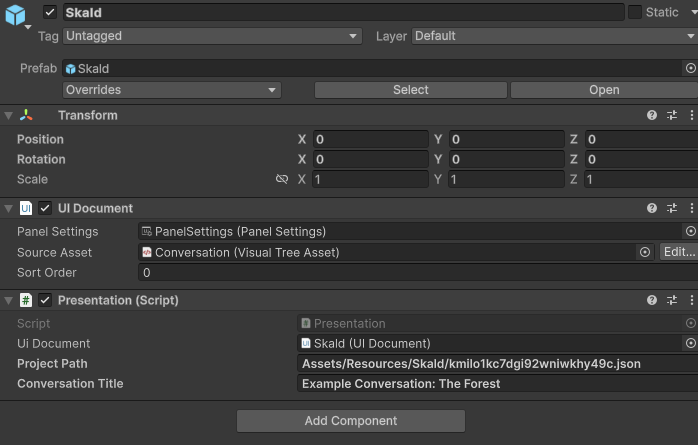
| Field | Description |
|---|---|
| UI Document | Should already point to the UI Document on the same GameObject |
| Project Path | Path to the synced JSON file, for example Assets/Resources/Skald/{projectId}.json |
| Conversation Title | The exact title of the conversation to start, as it appears in Skald |
Runtime vs editor
The plugin passes this editor asset path to File.ReadAllText, but a built Unity game cannot load a project through its source-tree Assets/... path.
Use a build-compatible asset loader (such as Resources.Load<TextAsset>) for runtime conversation handling.
If Conversation Title is left empty, the prefab starts the first conversation in the imported project.
Finding the conversation title
Conversation titles match what you see on the Conversations page in Skald. The title must match exactly.
Play the conversation
Enter Play mode. The prefab loads the project, finds the default start node for the chosen conversation, and begins playback.
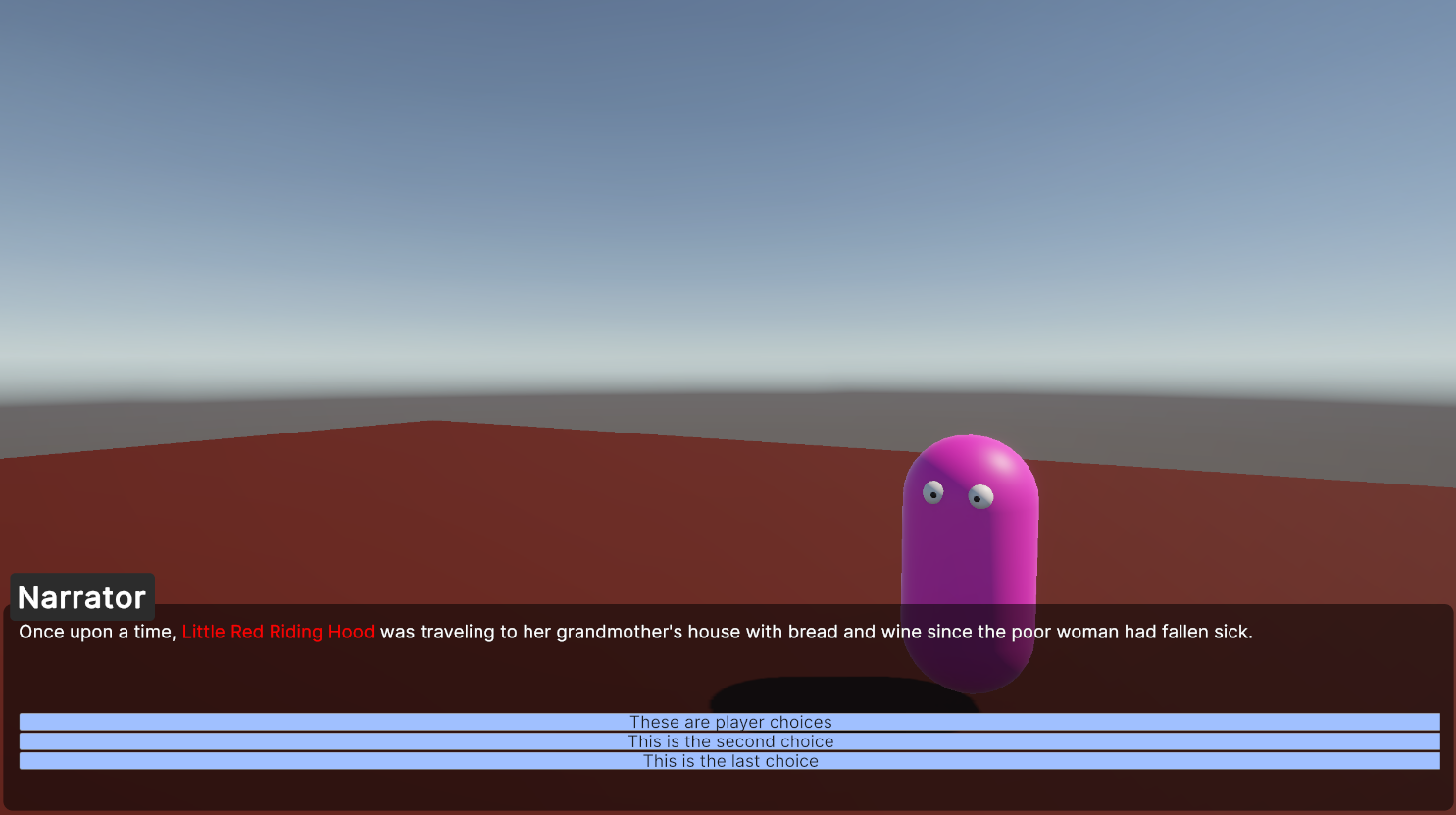
During playback the prefab:
- Shows the speaking character's name and dialogue text
- Renders rich text formatting from Skald (such as coloured character names)
- Displays a Continue button for dialogue nodes
- Shows player choice buttons when the graph reaches a player choice node
- Disables choices whose preconditions are not met
When the conversation ends
When the graph reaches an end node, the prefab clears the UI. To play again, exit and re-enter Play mode, or build your own flow to restart the conversation.
Next steps
The prefab is a reference implementation. If you need a different look, input model, or integration with your game's UI, see Creating a conversation handler.