Syncing Skald to Unity
Connect Unity to Skald and import projects through the Skald API
Syncing Skald to Unity
The Skald Sync editor window connects your Unity project to your Skald account. After you authorize the connection in your browser, you can fetch your projects and import them as JSON files for the runtime dialogue engine.
Make sure you have installed the Unity plugin first.
Open the Skald Sync window
In Unity, open Tools → Skald → Skald UI.

The Skald Project Window opens and shows project import options.
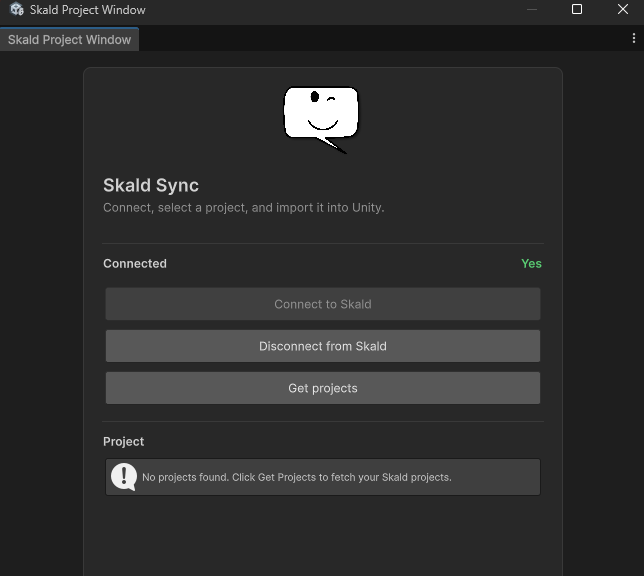
Connect to Skald
- Click Connect to Skald. (Your default browser should open to Skald's authorization page)
- Sign in to Skald if you are not already signed in.
- Click Authorize to allow Unity to read your projects.
When authorization succeeds, the connection status changes to Connected: Yes.
What you are authorizing
Authorizing Unity gives the plugin permission to list and download your Skald projects through the engine API. You choose which project to import after connecting — Unity does not automatically download anything.
Fetch your projects
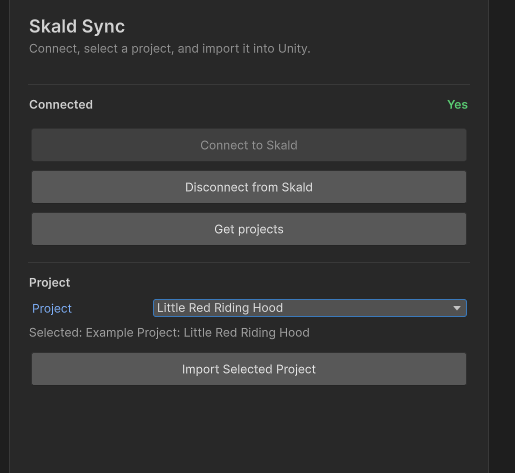
- Click Get projects.
- Wait for Unity to retrieve the list of projects available to your Skald account.
- Choose a project from the dropdown.
Import a project
- Select the project you want in the dropdown.
- Click Import Selected Project.
Unity downloads the project export from Skald and saves it under Assets/Resources/Skald/. The filename uses the project ID, for example oa3g4vae074i5dg.json.
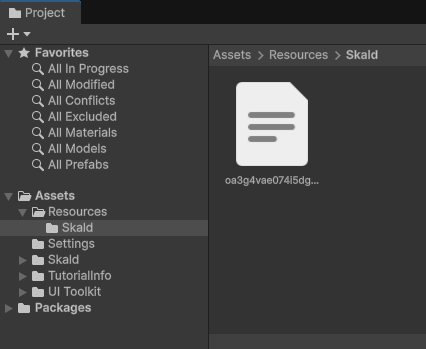
Use this file path in the Skald prefab or your own conversation handler to load the project at runtime.
Disconnect from Skald
Click Disconnect from Skald to revoke the engine token and clear the stored connection in Unity.
You can connect again at any time by repeating the authorization flow.
What gets exported to Unity
Engine sync exports are optimized for game runtime use. A synced project includes:
- Project metadata (title, description)
- Characters
- Tags
- Variables
- Lore
- Conversations and their node data
The following are not included in engine exports:
- Note nodes — authoring-only nodes used for comments in the graph editor
- Group nodes — organisational containers in the graph editor
Sync vs manual export
Manual project
exports create
.skald-project.json backup files you can re-import into Skald. Engine sync
exports are a different format intended for Unity and other game engines.
Expressions and rich text are parsed into structured data during engine
export.
Re-syncing after changes
When you edit a project in Skald, import it again from the Skald Sync window to update the JSON file in Unity.
The imported file is overwritten using the project ID as the filename, so existing references to Assets/Resources/Skald/{projectId}.json keep working.
Troubleshooting
The browser page says the challenge was not found
The authorization request may have expired or already been used. Click Connect to Skald again to start a new authorization flow.
Import fails with an authorization error
Your engine token may have expired. Click Disconnect from Skald, then connect and authorize again before importing.
No projects are showing up the UI
If no projects appear, make sure you have created at least one project in Skald and that you are signed into the same account you authorized.
Next steps
- Using the prefab — run conversations with the included UI
- Creating a conversation handler — build a custom dialogue presenter